Black Friday checklist for Shopify and WooCommerce stores
A practical Black Friday checklist for Shopify and WooCommerce store owners: what to test, what to freeze, and what to tell shoppers before the sale, from a developer who keeps online stores running through it.

Black Friday falls on November 27 this year, with Cyber Monday on November 30. For most online stores it’s the busiest weekend of the year, and also the worst possible time to discover that the checkout breaks with a discount code or the homepage takes eight seconds to load on a phone.
Most of the problems I get called about in late November could have been found with an hour of testing in early November. This is the checklist I work through with store owners, split into what to do now, what to do the week before, and what to do once the sale is over. It applies to Shopify and WooCommerce, with notes where the two differ.
Three to four weeks before: get the store ready
Check your speed on a phone
Run your homepage, a collection page and a product page through Google’s PageSpeed Insights on the mobile setting. You don’t need a perfect score, but a slow product page loses sales on a day when shoppers are comparing several stores at once.
- Remove apps or plugins you no longer use. On Shopify, check that uninstalled apps haven’t left code behind in your theme.
- Compress large images, especially homepage banners. A single uncompressed hero image can outweigh the rest of the page.
- On WooCommerce, make sure page caching is on and that your host can handle more visitors than usual. Ask them directly if you’re unsure.
Clean up your product pages
Check stock levels, prices and variants for the products you plan to promote. Out-of-stock items shouldn’t be the first thing people see on your sale page, and every promoted product should have clear delivery and returns information close to the Add to cart button.
Decide how the sale will work
Choose your discount type early: automatic discounts, codes, sale prices or bundles. Then set them up now, in draft or scheduled, rather than at midnight on Thanksgiving. On Shopify, check how your discounts combine with each other. On WooCommerce, check how coupons interact with any sale prices you’ve already set.
Two weeks before: test everything
Place real test orders
Go through the checkout yourself on a phone and on a computer. Use Shopify’s test mode or WooCommerce’s test payment settings, or place a real low-value order and refund it.
- Order a single item, then several items, then an item with a discount code.
- Try each payment method you offer, including wallets such as Apple Pay or PayPal.
- Check the order confirmation email and the email you receive as the store owner.
- Make sure shipping rates are correct for your main regions and for any free shipping threshold.
Test the discounts you scheduled
Discount codes are the most common thing to go wrong. Test each one in a real cart: that it applies to the right products, that it stops at the right date, and that it can’t be stacked with other offers in ways you didn’t plan.
Check forms, emails and tracking
Send a test message through your contact form, sign up to your newsletter, and check that your analytics are recording purchases. If tracking is broken, you won’t know which campaigns worked until it’s too late to fix.
One week before: freeze and communicate
Stop making changes
Agree on a freeze date and stick to it. After that, no theme updates, no new apps or plugins and no redesigns until the sale is over. Updates usually go fine, but if one doesn’t, you want to find out in a quiet week, not on Black Friday morning.
Back up the site
On WooCommerce, take a full backup of the files and database, and make sure you know how to restore it. On Shopify, duplicate your live theme so you have a working copy to switch back to if an edit goes wrong.
Tell shoppers what to expect
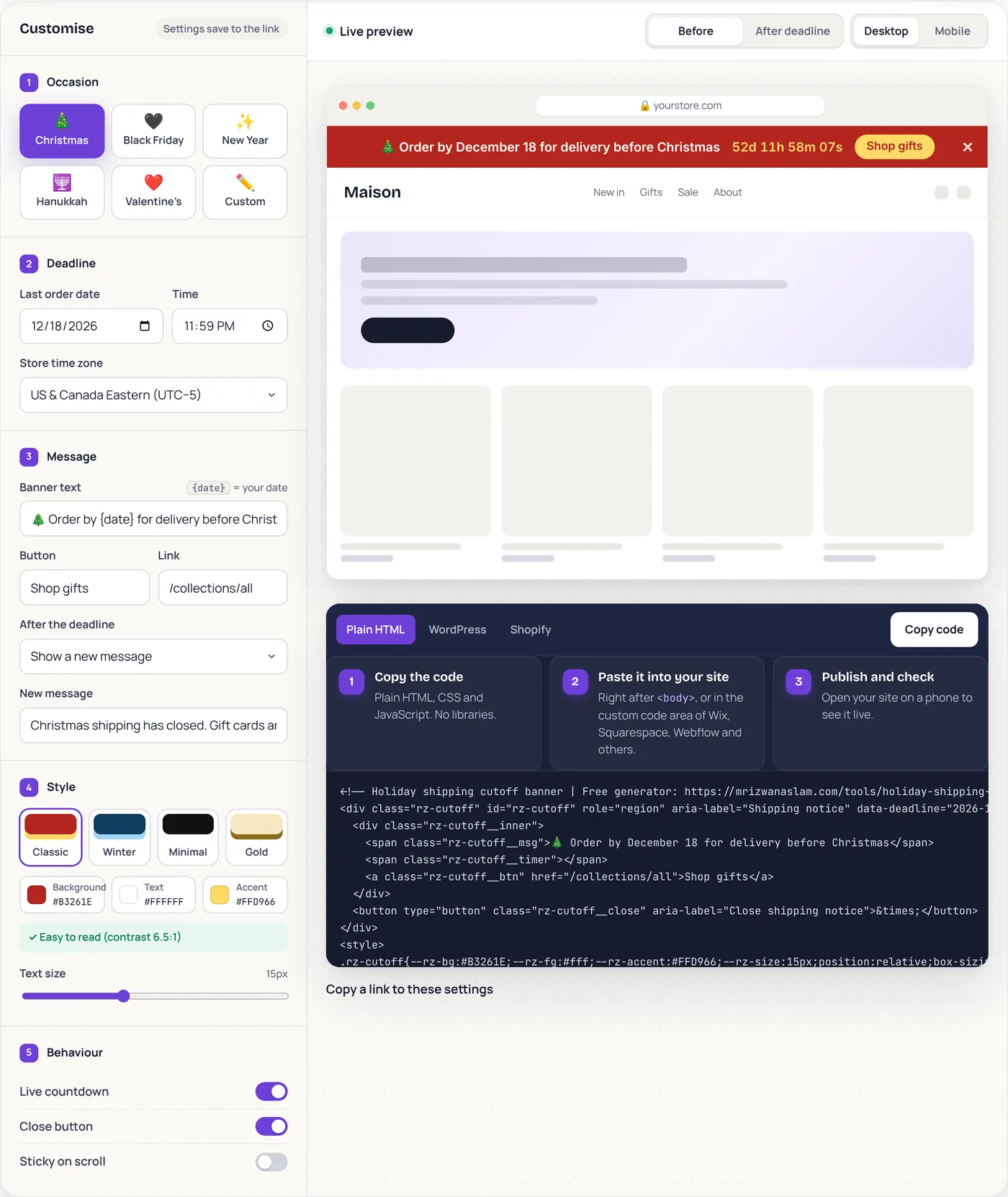
A banner at the top of the site does more work than any FAQ page. Show the sale end date, and if you ship physical products, your holiday last order date. My free holiday shipping banner generator has a Black Friday option with a live countdown, and it works on Shopify, WordPress and any other website.
Also update your returns and delivery pages with the holiday dates, and make sure your support inbox has an auto-reply that answers the obvious questions.
Know who to call
Write down who handles what if something breaks: your developer, your host, your payment provider. Keep the logins somewhere safe and accessible. Five minutes now saves an hour of searching for a password while the site is down.
During the sale
- Place one quick test order on the morning the sale starts, to confirm everything works with the discounts live.
- Keep an eye on stock for your best sellers and pause ads for anything that sells out.
- Watch your inbox and social messages, because shoppers expect quick answers during a sale.
- If something goes wrong, fix only that problem. A sale weekend isn’t the time for other improvements.
After the sale
- Switch banners and pages back, or move straight to your Christmas shipping message.
- End or remove discount codes so they don’t keep working into December.
- Note what went wrong and what customers asked about most. That list is the start of next year’s checklist.
- Then catch up on the updates you postponed during the freeze, one at a time.
If you’d like someone to go through this with you, I do pre-sale checks, speed fixes and support as part of my website maintenance work for Shopify and WooCommerce stores. There’s still time before the 27th, but the earlier the better.
Frequently asked questions
When should I start preparing my store for Black Friday?
Three to four weeks before is ideal. That leaves time to fix speed problems, set up discounts and test the checkout, and still freeze changes a week before the sale.
Should I update my theme or plugins before Black Friday?
Do it early in November, then stop. Set a freeze date about a week before the sale and avoid theme updates, new apps and plugin updates until it’s over, so a surprise compatibility problem can’t break the store on your busiest day.
How do I test my checkout without paying?
Shopify has a test payment mode, and WooCommerce payment plugins such as Stripe and PayPal have test or sandbox settings. You can also place a real low-value order and refund it, which tests the full process including emails.
Can my site handle the extra Black Friday traffic?
Shopify handles the hosting side for you. For WooCommerce it depends on your host and caching setup, so check that page caching is on and ask your host whether your plan can cope with a sudden rise in visitors.
How do I show a Black Friday countdown on my store?
Use the free holiday shipping banner generator: choose Black Friday, set your end date and copy the code for Shopify, WordPress or any other website.
Senior WordPress and Shopify developer with nine years of experience building and maintaining websites for businesses and agencies worldwide.
More about me