How to show holiday shipping deadlines on your store
A practical guide to holiday shipping deadlines for online stores: how to work out your last order date from the carriers’ cutoffs, and how to add a countdown banner to Shopify, WordPress or any website.

From late November until Christmas, the question store owners hear most is some version of “If I order today, will it arrive in time?” It turns up in contact forms, live chat and Instagram DMs, often from people who were ready to buy and only needed a date.
The easiest answer is a holiday shipping banner: your last order date at the top of every page, a countdown to the exact cutoff, and a different message once that time has passed. Below I explain how I work out that date with clients and how to add the banner to Shopify, WordPress, WooCommerce or any other site. You can follow along with my free holiday shipping banner generator.
Why your store needs a shipping cutoff banner
A shipping FAQ page does the job in theory, but very few shoppers open it. A banner puts the date where people already look, on every page, at the moment they’re deciding whether to order. In practice that helps in four ways:
- Shoppers stop emailing to ask about delivery, which frees up your team in the busiest weeks of the year.
- The deadline is real, so it gives people a genuine reason to order now. You don’t need fake “only 2 left” timers.
- Fewer gifts arrive late, which means fewer refunds, complaints and bad reviews in January.
- After the cutoff the banner can send people to gift cards, digital products or local pickup, so the last week of December still brings in sales.
How to work out your holiday shipping deadline
Your last order date needs to come earlier than the carrier’s holiday cutoff, because the carrier’s date is when the parcel has to be in their hands. I usually work backwards like this:
- Look up the official holiday shipping date for every carrier and service you offer, for example ground and express.
- Take off the time it takes you to pick, pack and hand over an order. In December that’s often a day longer than usual.
- Add a day or two of buffer for weather, carrier delays and late-night orders.
- If you offer several services, either use the earliest date or show one date per service when the gap is big enough to matter.
Carriers publish their dates each autumn and sometimes change them, so use the official pages and not a list from last year: USPS, UPS, FedEx, Royal Mail, DHL, Canada Post and Australia Post.
What to put on a holiday shipping banner
The best banners I’ve built for clients say one thing clearly and then get out of the way. Mine include:
- The date in plain words, such as “Order by December 18 for delivery before Christmas”.
- A live countdown to the exact cutoff time, set in your store’s time zone so it’s correct for every shopper wherever they are.
- One button, for example “Shop gifts”, linking to your best holiday collection.
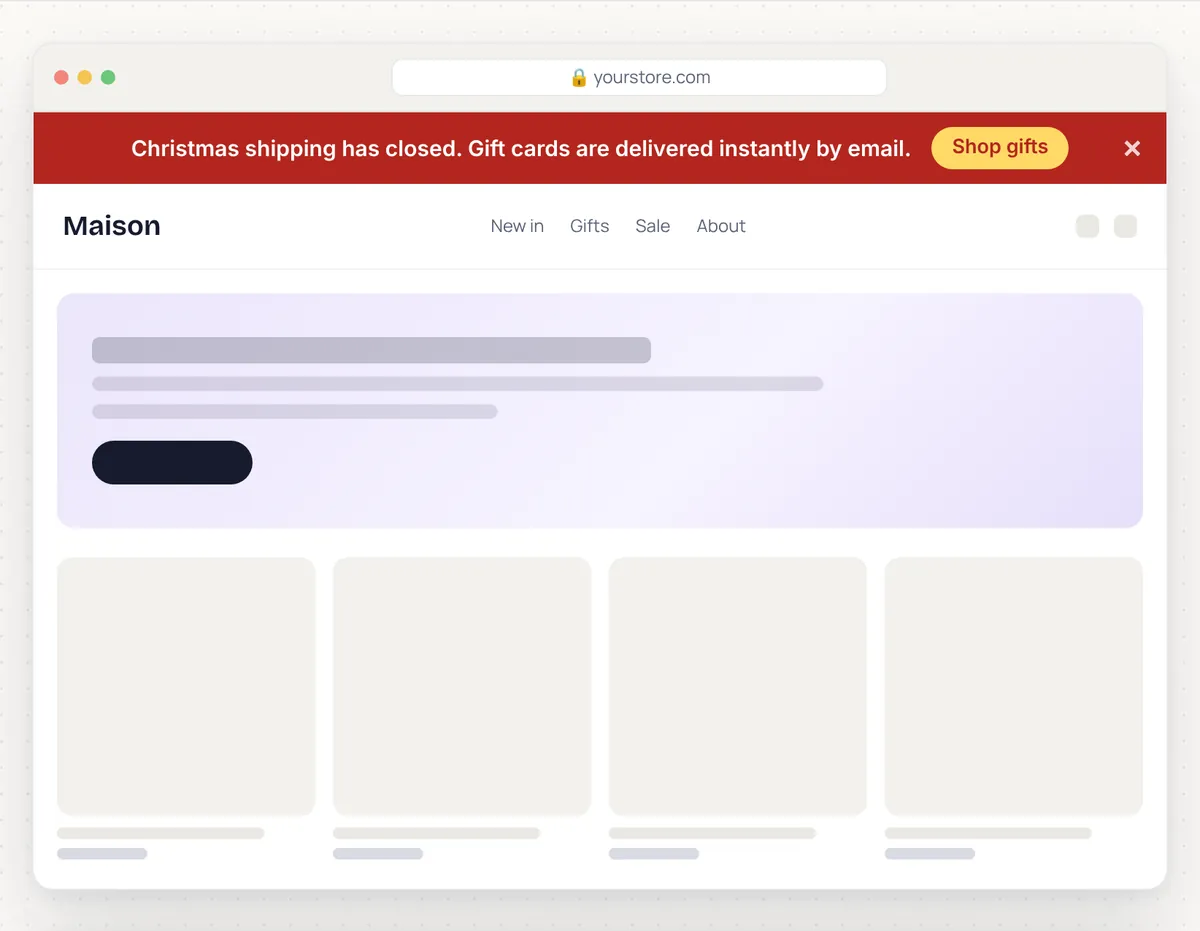
- A second message for after the deadline, such as “Christmas shipping has closed. Gift cards are delivered instantly by email.”
- A close button, and colours with enough contrast to read on a phone in daylight.
It should also be light, because it loads on every page. The generator’s banner is about 3 KB of plain HTML, CSS and JavaScript and uses no libraries or web fonts.
Create your banner with the free generator
Open the holiday shipping banner generator and work through the five steps on the left: occasion, deadline, message, style and behaviour. The preview on the right updates as you type, so you can see the countdown running on a sample store before you copy anything. It’s free, there’s no signup, and the code doesn’t include a watermark.
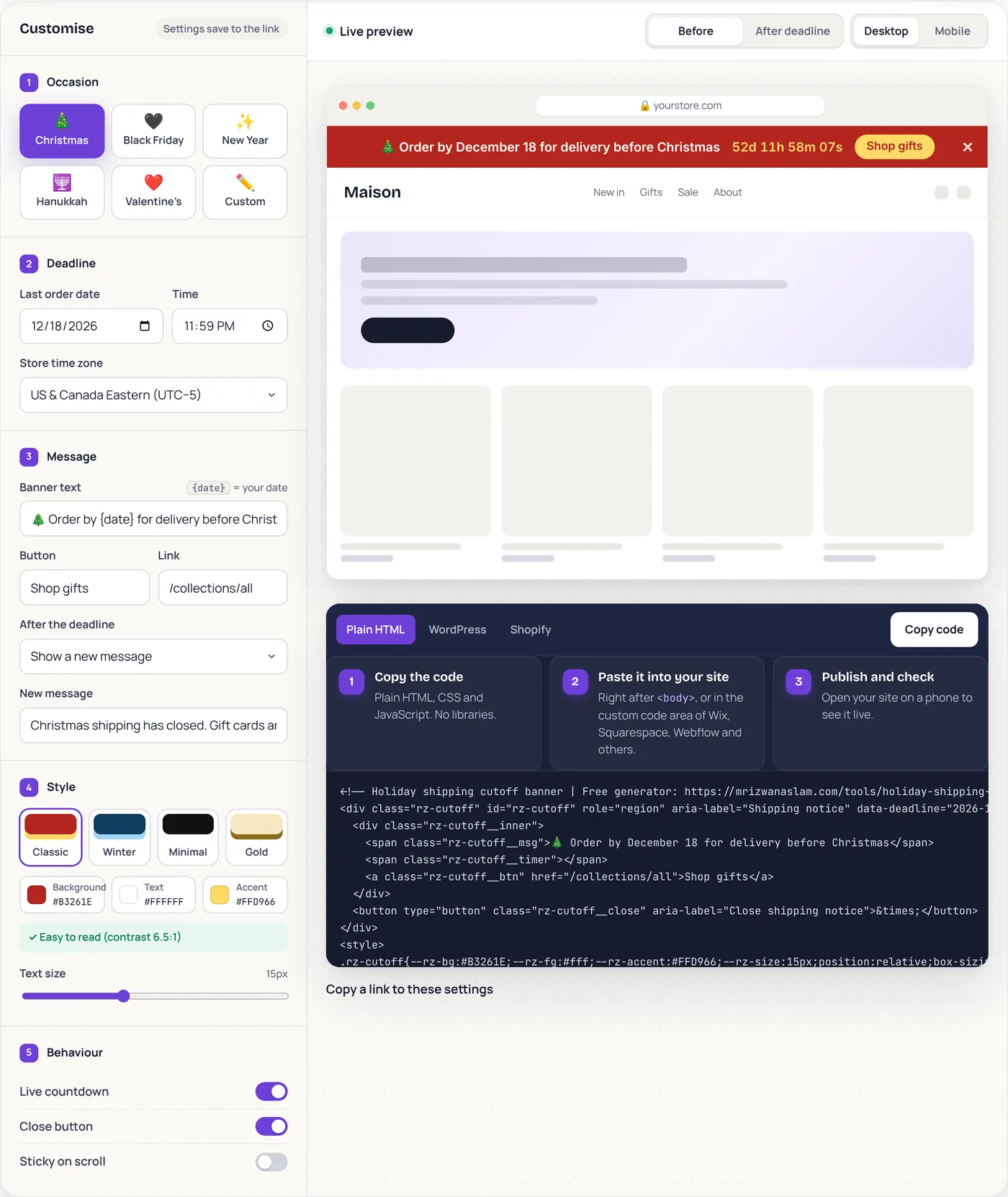
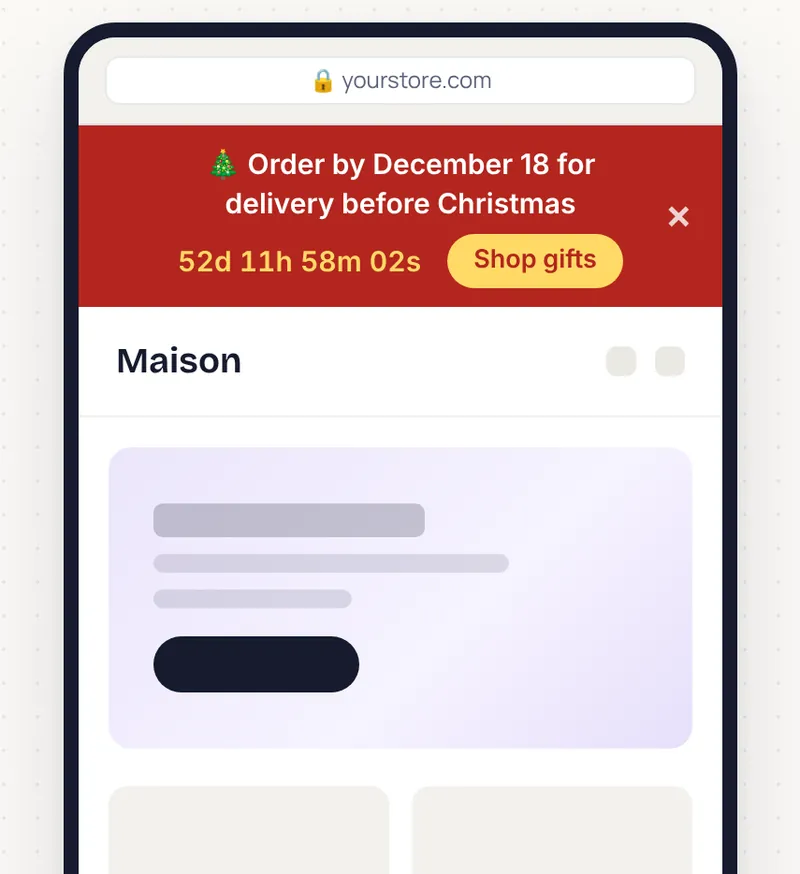
Use the Before and After deadline switch above the preview to check both messages, and the Mobile switch to see how the text wraps on a phone. If the message runs to three lines on mobile, shorten it.
How to add a shipping banner to WordPress or WooCommerce
For WordPress, the generator builds a small plugin with your settings already in it, so you don’t need to edit theme files or install a snippets plugin.
- In the generator, open the WordPress tab and click Download plugin (.zip).
- In your WordPress dashboard, go to Plugins → Add New → Upload Plugin, choose the file and click Activate.
- Open your site to check it. The banner appears at the top of every page and hides itself on the WooCommerce cart and checkout, where it would only be a distraction.
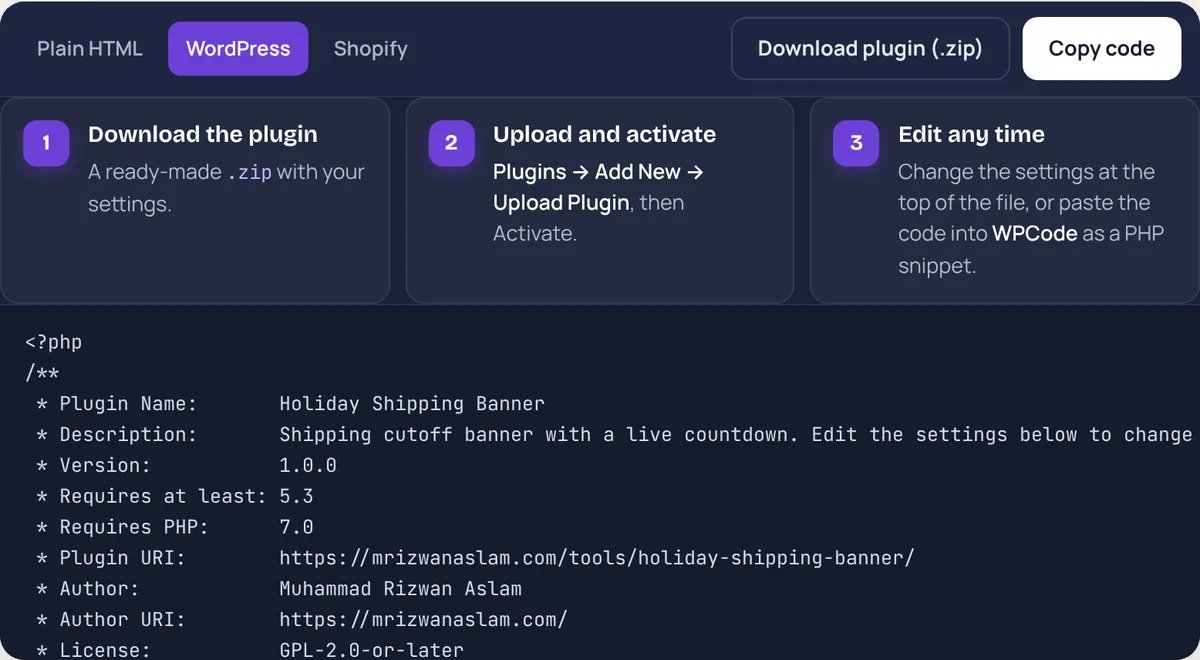
To change the text or date later, edit the settings at the top of the plugin file. If you already use WPCode, you can paste the same code in as a PHP snippet instead of uploading the plugin.
How to add a shipping banner to Shopify
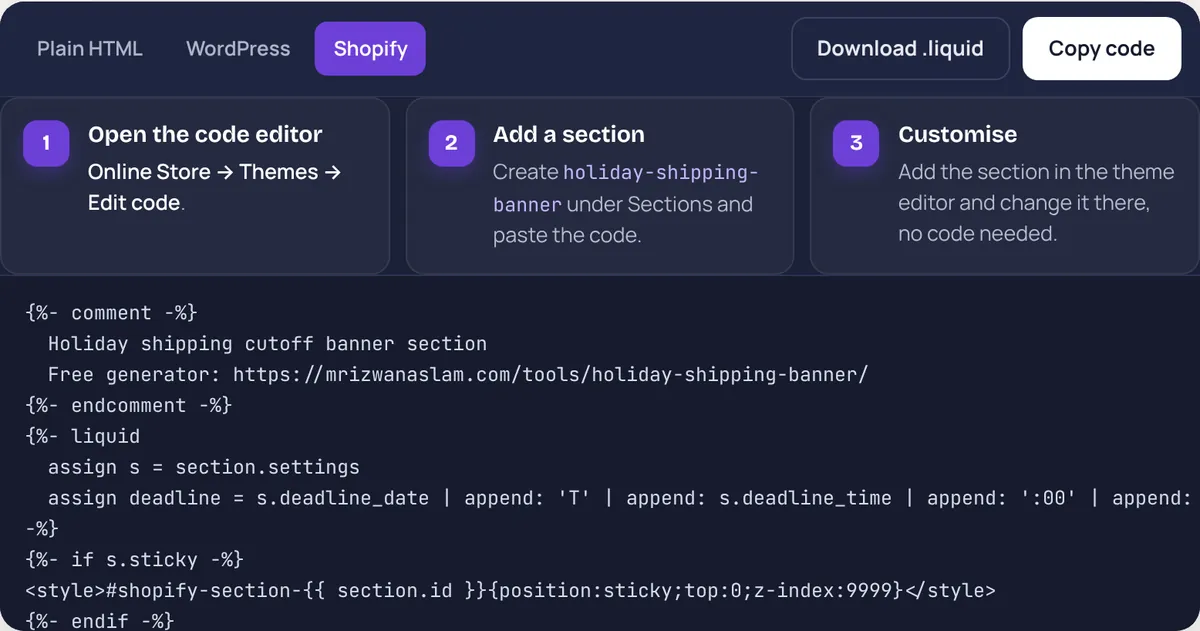
On Shopify the banner installs as a theme section. You add it once, and after that anyone on your team can change it in the theme editor without touching code.
- Go to Online Store → Themes, open the … menu on your live theme and choose Edit code.
- Under Sections, add a new section called holiday-shipping-banner and paste in the code from the Shopify tab.
- Open the theme editor, add the Holiday shipping banner section at the top of your pages and save.
How to add it to Wix, Squarespace, Webflow or any other site
Use the Plain HTML tab for every other platform, including Wix, Squarespace, Webflow, BigCommerce and hand-coded sites. Paste the code into your site’s custom code area for the start of the page body, or straight after the opening body tag. Then publish and check it on your phone.
Checklist before the banner goes live
- Check your date and time zone against each carrier’s official page one last time.
- Preview the after-deadline message so you know what shoppers will see the day after your cutoff.
- Make sure the button goes to a collection that’s in stock and ready for holiday traffic.
- Look at the banner on a small phone and shorten the text if it wraps too much.
- Put a reminder in your calendar to remove or update the banner in January.
If you’d rather have someone set it up for you, matched to your brand and tested on every device, I can do that as part of my Shopify and WooCommerce work, or on other platforms. If you’d rather do it yourself, the free generator will get the banner live today.
Frequently asked questions
When should I add a holiday shipping banner?
Add it as soon as you know your last order date, ideally before Black Friday. Shoppers start asking about delivery long before the final week, and a banner that’s up early answers them from the start.
Should my last order date match the carrier’s holiday deadline?
No. Set it a few days earlier. The carrier’s date is when the parcel must be with them, so take off your packing time and add a buffer for delays.
Does the countdown show the right time for customers in other countries?
Yes. The deadline is set in your store’s time zone, so every shopper counts down to the same moment wherever they are.
Will a shipping banner slow down my website?
Not noticeably. The banner is about 3 KB of plain HTML, CSS and JavaScript with no external libraries or fonts, so it adds almost nothing to your page weight.
What should the banner say after the shipping deadline?
Point shoppers to something they can still get in time, such as gift cards delivered by email, digital products or local pickup. You can also set the banner to hide itself once the date has passed.
Is the holiday shipping banner generator free?
Yes. There’s no signup and no watermark, and the code is yours to use on any store. Try the generator.
Senior WordPress and Shopify developer with nine years of experience building and maintaining websites for businesses and agencies worldwide.
More about me