How to add an advent calendar to your online store
A practical guide to running an advent calendar on your store this December: what to put behind each door, how to plan the offers, and how to add one to Shopify, WordPress or any website without slowing it down.

Most December promotions are a single sale that shoppers see once. An advent calendar is different: a new door opens every day, so people have a reason to come back to your store 24 times instead of once. For small shops that’s valuable, because each return visit is another chance to sell, collect an email address or remind someone about a gift they were already considering.
I’ve set up holiday promotions for store owners for years, and the same questions come up every time. What should go behind the doors? How generous should the offers be? And how do you add a calendar without installing a heavy app that slows the store down? This guide answers all three.
Why an advent calendar works for online stores
- It brings people back every day. Shoppers check in to see what today’s door holds, often over several weeks.
- It spreads your discounts out. You don’t have to give 30% off everything; one product or one small perk a day keeps people interested.
- It gives you content for every day of December. Each door is a ready-made email, story or post.
- It feels like a gift, not an advert. A door that opens to a recipe or a styling tip builds goodwill as well as sales.
What to put behind each door
The best calendars mix offers with small free things, so not every door asks for money. Here are 24 ideas you can adapt to almost any store:
- A welcome message explaining how the calendar works
- 10% off one category for 24 hours
- Free shipping with no minimum order
- A recipe, guide or how-to that fits your products
- Free gift wrapping
- Buy one, get one half price on a best-seller
- A behind-the-scenes photo of your team or workshop
- A free sample with every order
- Early access to a new product
- A gift guide for one type of person (“for the coffee lover”)
- A discount on gift cards
- A short video, such as a product demo or a seasonal greeting
- Double loyalty points
- A free digital download: a wallpaper, printable or playlist
- A mystery bundle at a set price
- A styling or care tip for a popular product
- A prize draw entry for anyone who opens the door
- A discount on your slowest-moving stock
- A thank-you note from the founder
- Free express shipping (check your carriers’ holiday dates first)
- A last-minute gift idea under a set price
- A reminder of your final order date for Christmas delivery
- A digital gift card promotion for late shoppers
- The biggest offer of the month, saved for the last door
How to plan your calendar
- Choose your dates. A classic advent calendar runs 1–24 December, but you can run 12 days, a week before Black Friday, or 30 days for Ramadan.
- Work out your margins first. Decide the biggest discount you can afford, then give it to one or two doors, not all of them.
- Use unique or time-limited coupon codes. Set each code to expire at the end of its day, so a code shared on social media can’t be used all month.
- Match the offers to your stock. Don’t put a product behind a door if you might sell out of it before that day.
- Plan where you’ll announce it: your homepage, your email list and your social channels. Calendars work best when people know to check back.
Also check your shipping dates. Doors that offer physical products after your last delivery date should switch to gift cards, digital products or local pickup. If you haven’t set your cutoff yet, my guide to holiday shipping deadlines explains how.
How to add an advent calendar to your store
You have three options. Some Shopify apps and WordPress plugins offer advent calendars, but many charge monthly, add tracking scripts or only work on one platform. You can have one built by a developer, which makes sense if it needs custom logic. Or you can use a ready-made script that works on any website.
I took the third route and built my own: DoorDays, a lightweight advent calendar that works on Shopify, WordPress, Wix, Squarespace, Webflow and plain HTML sites. It’s about 8 KB of JavaScript with no libraries, and it comes with a visual builder so you don’t need to write any code. Here’s how it works in 40 seconds:
Step 1: Design the calendar
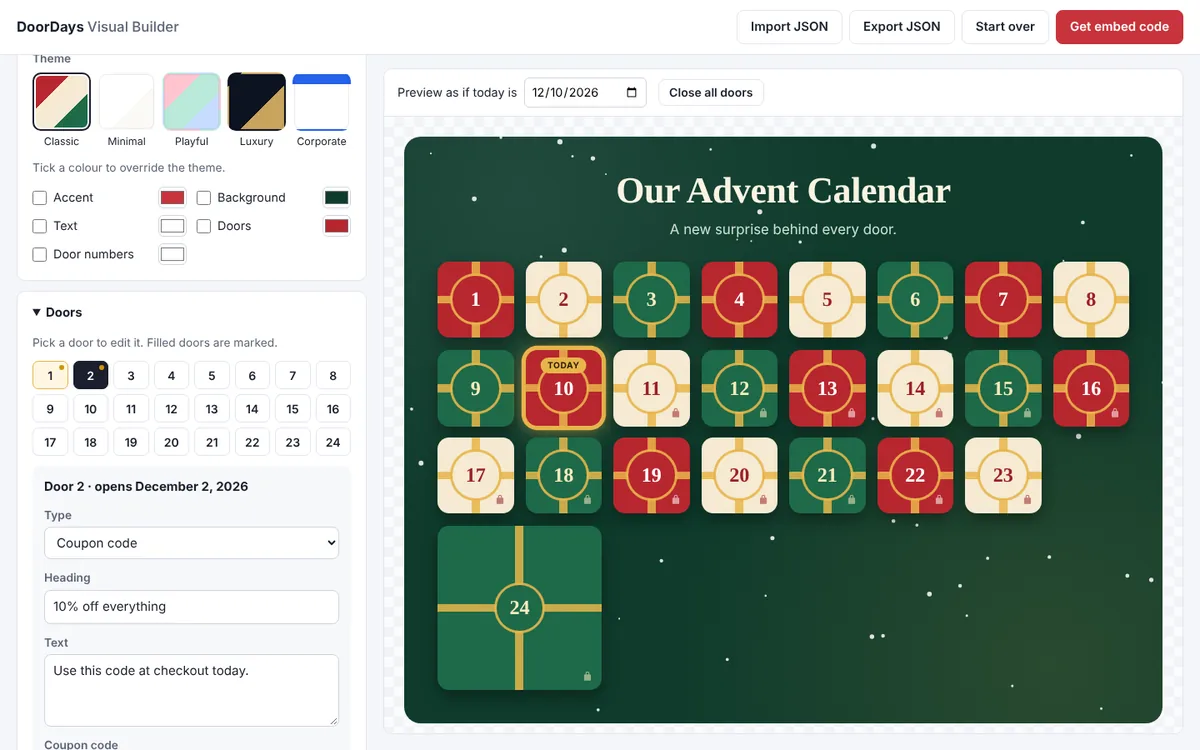
Open the visual builder in your browser. Set the title, the start date and the number of days, pick one of the five themes and match the colours to your brand. Then click each door number and add its content: a message, a coupon code, an image, a YouTube video or a link to a product. The preview shows the calendar on any date you choose, so you can check day 18 before it arrives.
Step 2: Copy the code for your platform
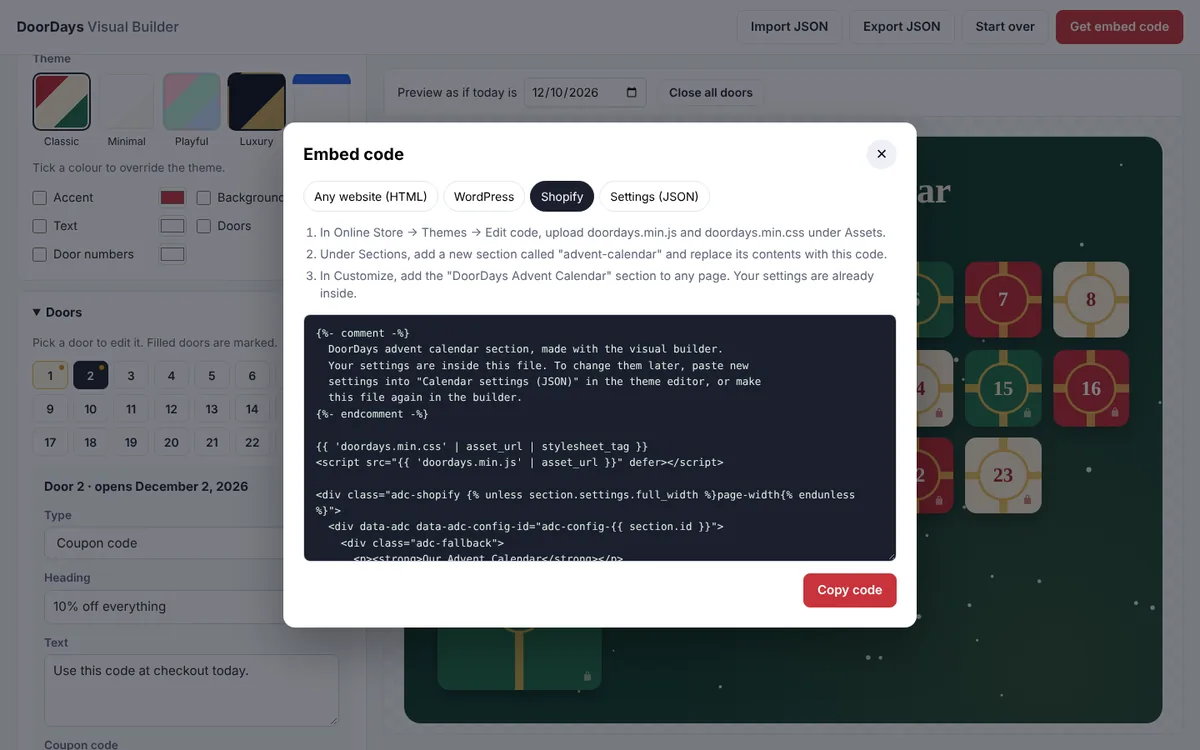
Click “Get embed code” and choose your platform. Each tab gives you code made for it, with the steps next to it: a single HTML block for most sites, a version for WordPress, and a complete theme section for Shopify that you can then add from the theme editor.
Step 3: Add it to your page
- Shopify: upload the two files under Assets, add the section from the embed window, then place it on any page in the theme editor.
- WordPress and WooCommerce: upload the files to your site, then paste the code into a Custom HTML block, or the HTML element in Elementor, Divi or another page builder.
- Wix, Squarespace, Webflow and others: paste the HTML code into an embed or custom code block.
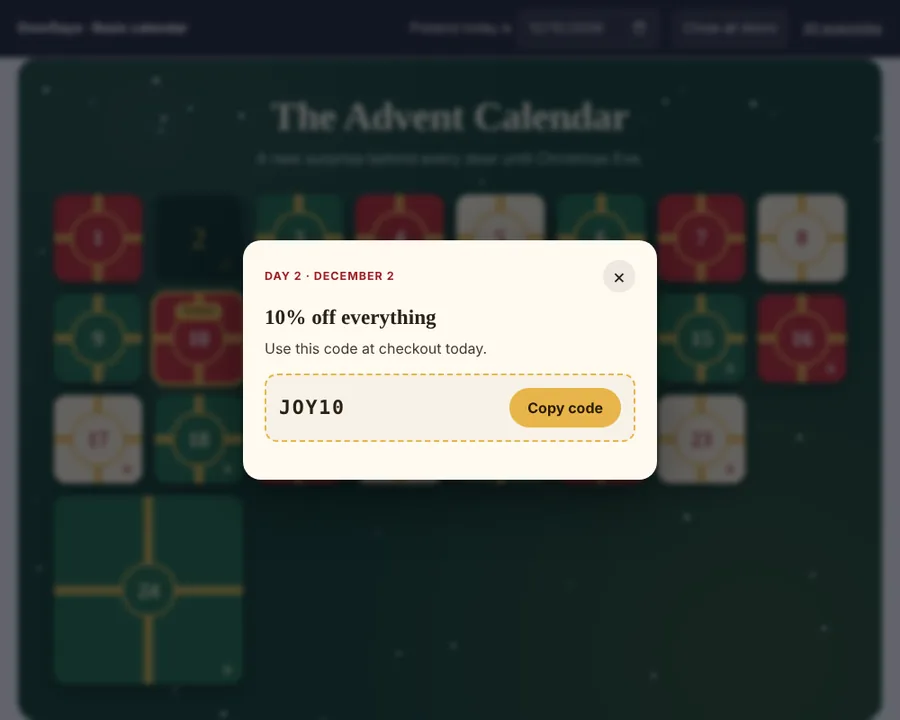
That’s it. Doors unlock at midnight in each visitor’s time zone, or at the same moment for everyone if you’re running a prize draw. Coupon doors have a copy button, and future doors show a friendly “not yet” message instead of giving the surprise away.
Not only for Christmas
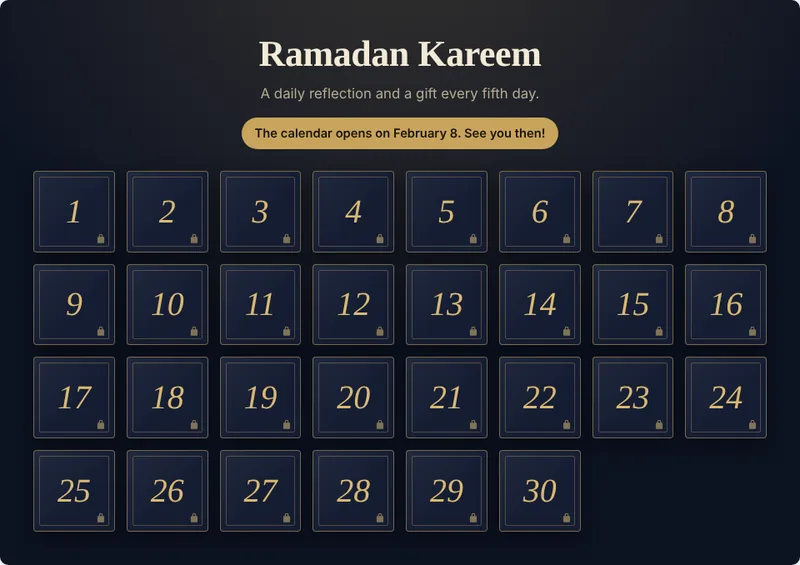
The same idea works for any campaign with a daily rhythm. The calendar can run from 1 to 31 days, so you can use it for the 12 Days of Christmas, a 30-day Ramadan calendar, a product launch week or a back-to-school promotion. Every text can be changed, including for right-to-left languages such as Arabic and Urdu.
Checklist before your calendar goes live
- Test the calendar on a real phone, not only the desktop preview.
- Create every coupon code in Shopify or WooCommerce and check that each one works at checkout.
- Set each code to expire at the end of its day.
- Preview a few future dates to check the door content and the locked-door message.
- Link to the calendar from your homepage, emails and social profiles.
- Put a reminder in your calendar to remove it, or switch it to a thank-you message, after the last day.
You can try the live demo of DoorDays to see how it feels on your phone. It costs $9 for one website, or $34 for unlimited sites if you’re an agency. If you’d rather I set up the calendar for you, styled to your brand and tested on every device, that’s part of my Shopify and WooCommerce work.
Frequently asked questions
When should I launch an advent calendar?
Set it up by mid-November so you have time to test the codes and announce it. Most advent calendars open on December 1, but you can start earlier with a Black Friday week calendar.
Can shoppers open future doors early?
No. Future doors stay locked and show a “not yet” message. If your coupons are valuable, also make each code expire at the end of its day, or use the optional PHP file that keeps door content on your server until its date.
Will an advent calendar slow down my store?
It shouldn’t. DoorDays is about 8 KB of JavaScript and 5 KB of CSS with no libraries, and videos only load when a visitor presses play.
Does it work on Shopify and WordPress?
Yes. DoorDays works on Shopify, WordPress, WooCommerce, Wix, Squarespace, Webflow and any site where you can add HTML. It comes with a ready-made Shopify section and a WordPress guide.
Can I reuse the calendar next year?
Yes. Export your settings from the builder, change the dates and doors, and give the calendar a new name so returning visitors see all doors closed again.
How much does DoorDays cost?
$9 for one website or $34 for unlimited websites, as a one-time payment with free 1.x updates. See DoorDays on Gumroad.
Senior WordPress and Shopify developer with nine years of experience building and maintaining websites for businesses and agencies worldwide.
More about me